Test case editor
The Catala VSCode plugin provides a Graphical User Interface (GUI) to help create and manage end-to-end tests. Unlike unit tests which focus on atomic units of implementation, end-to-end tests aim at testing the output of a whole computation, or reproduce erroneous computations found in production to catch regressions. These tests are often written by domain experts who may or may not be developers.
Catala tests are usually written in Catala source code files, as explained in the testing walkthrough. These regular Catala test cases written by programmers are however usually incompatible with the test case editor presented in this page. Tests managed by the test editor need to be created inside the tool itself and live separately from the other tests written as regular Catala source code files.
Enabling the test case editor
The test case editor needs to be enabled before first use.
To do so, bring the VS code command panel (ctrl-shift-P) and search for “settings”, then filter by typing “catala” in the search box.
In the catala settings, check “Enable Custom Test Editor”.

Creating a test managed by the test case editor
To create a test that can be managed by the test case editor, create a new
source file (ending in .catala_en) and ensure that its name contains “test”
(for example income_tax_test_42.catala_en). Right-click on the newly-created
file and select “Open with Catala Test Editor”.

To avoid VSCode needing to peek into file contents before deciding which
plugin(s) may open them, the test case
plugin is restricted to opening Catala files containing test
within their name. Other files will trigger the text editor displaying thhe Catala progam.
Opening this new test in the Test Editor will show a welcome page that lets you create a new test.
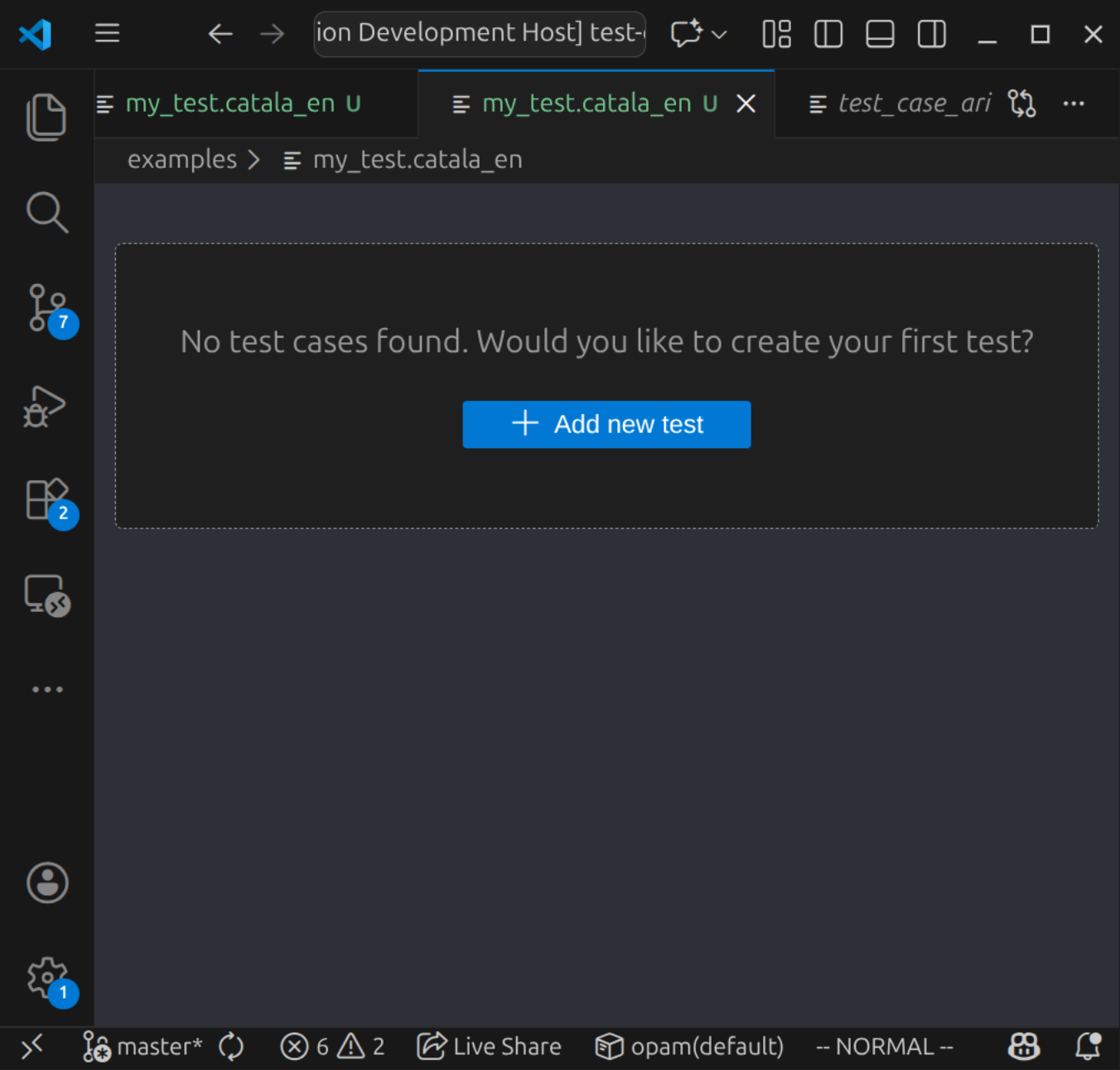
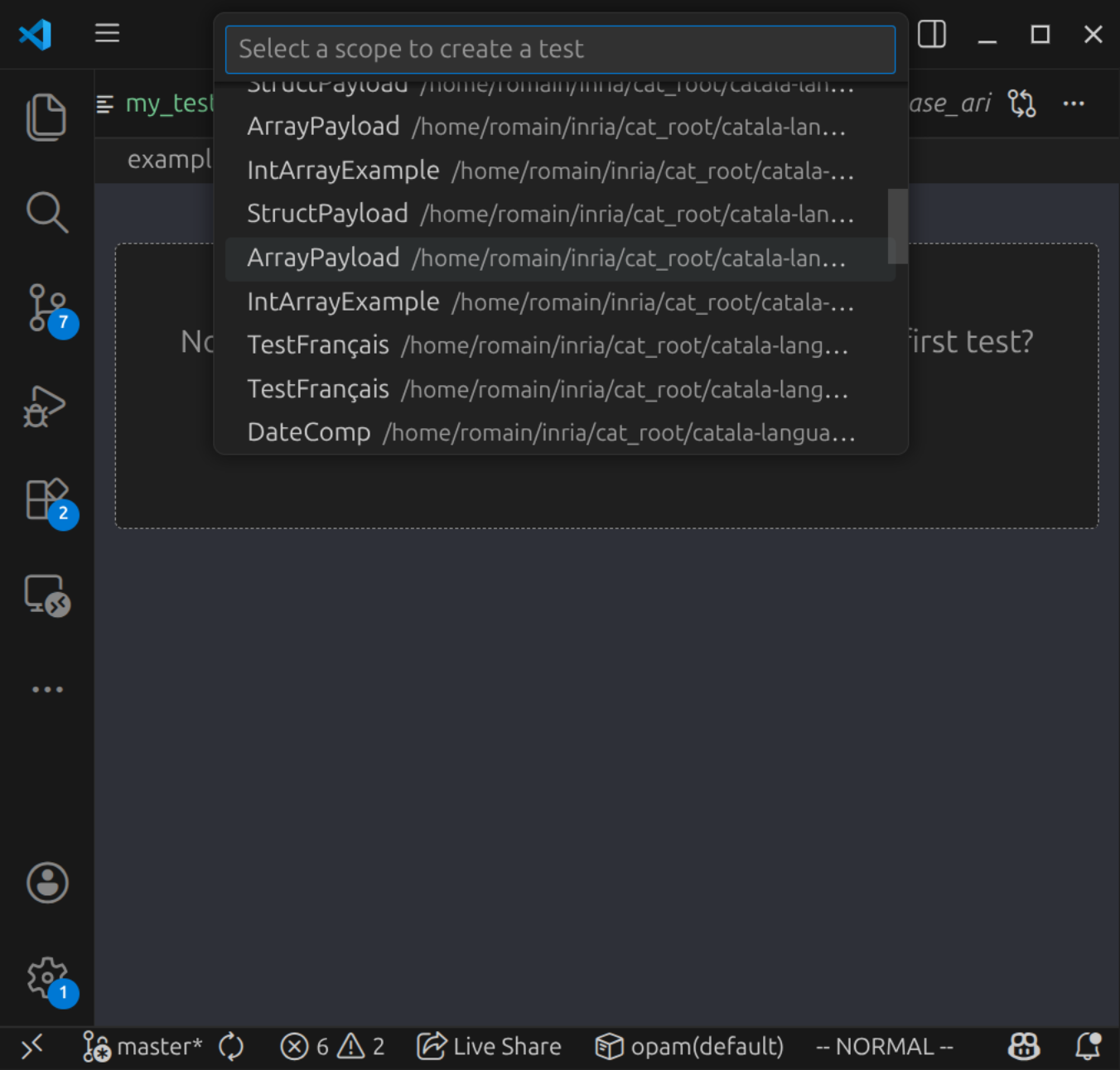
Select a scope
Available scopes within the project are auto-detected and listed within a dialog.
Select the one that you wish to test, and an input form will be displayed.
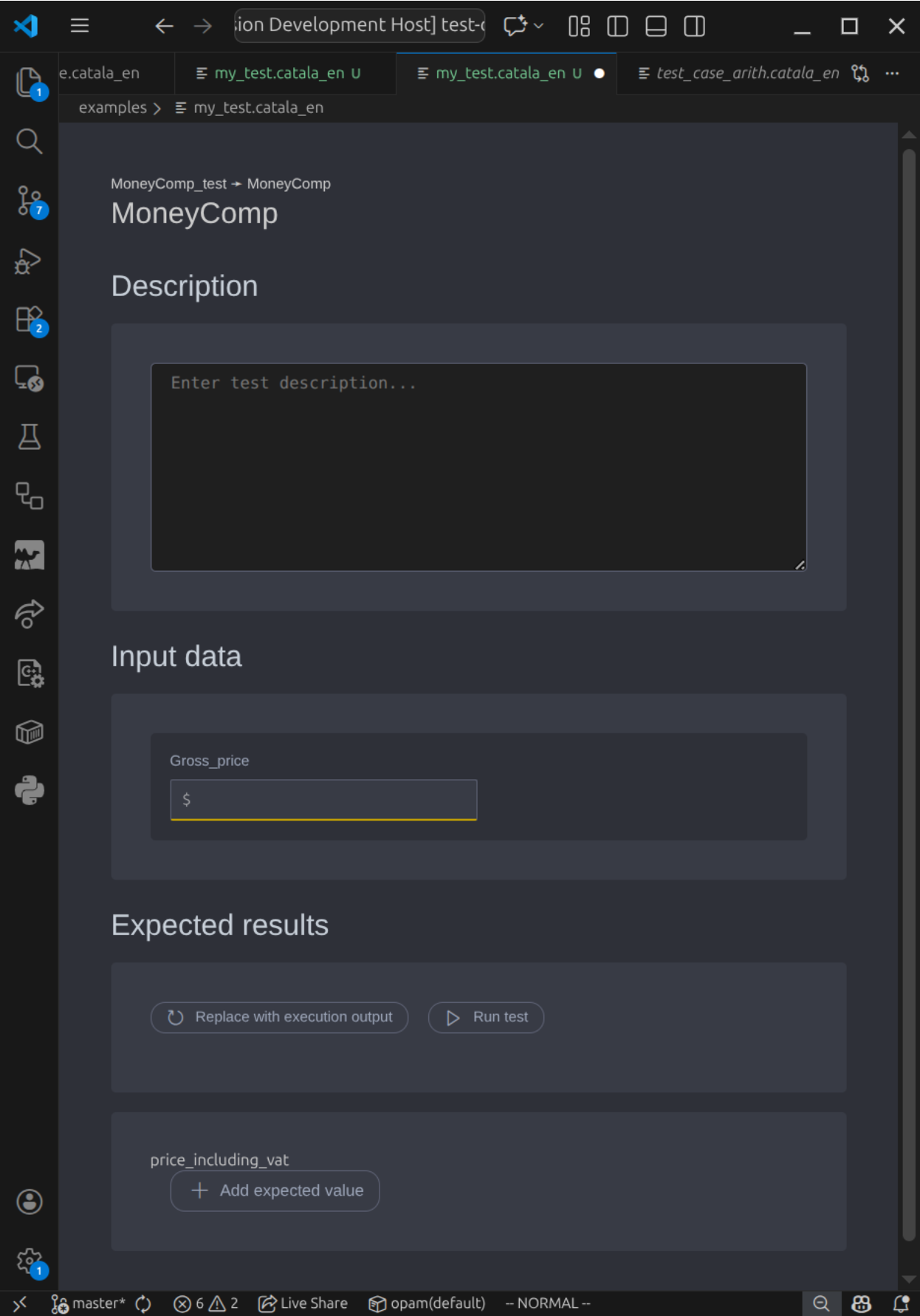
Although not all catala code needs to live in a module, all scopes exercised using the test tool must be defined within a module.
Define input data and expected values
Asserting on expected values and reporting differences with the actual computation results is the whole point of a test.
The Expected results section of the editor lets you define those.
Running a test / diff view
Run a test using the “Run test” button, or directly through the test runner in
VS code. Tests managed by the test case editor are full-blown catala tests, and
can (in fact, should!) also be run using clerk run and be part of the test
suite exercised by clerk test.
When a test fails, the test case edutir will attempt to show a structural diff, including missing or extra array elements.
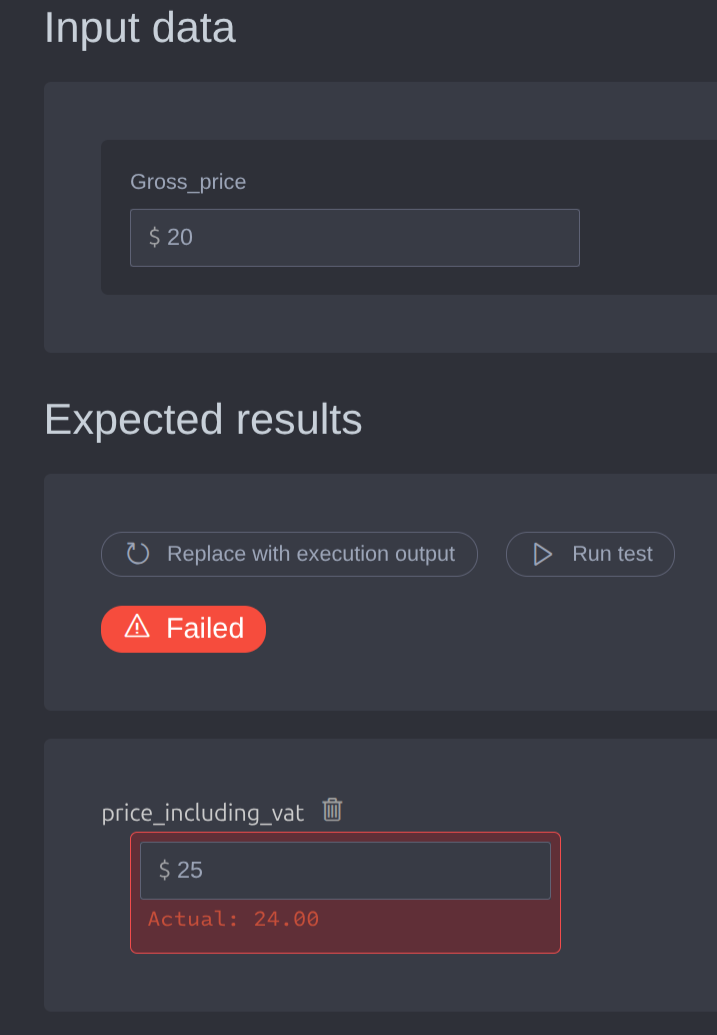
Managing a test codebase with the test case editor and VSCode
Should I check tests managed by the test case editor in version control and run them in my continuous integration system?
Yes! While we provide a GUI for non-programmers to create business tests whithout writing Catala literals and assertions, good software engineering practices still apply. We store tests as plain Catala files (with a few technical attributes) to help check them in and review diffs in the same manner as other test and program files.
Searching for tests
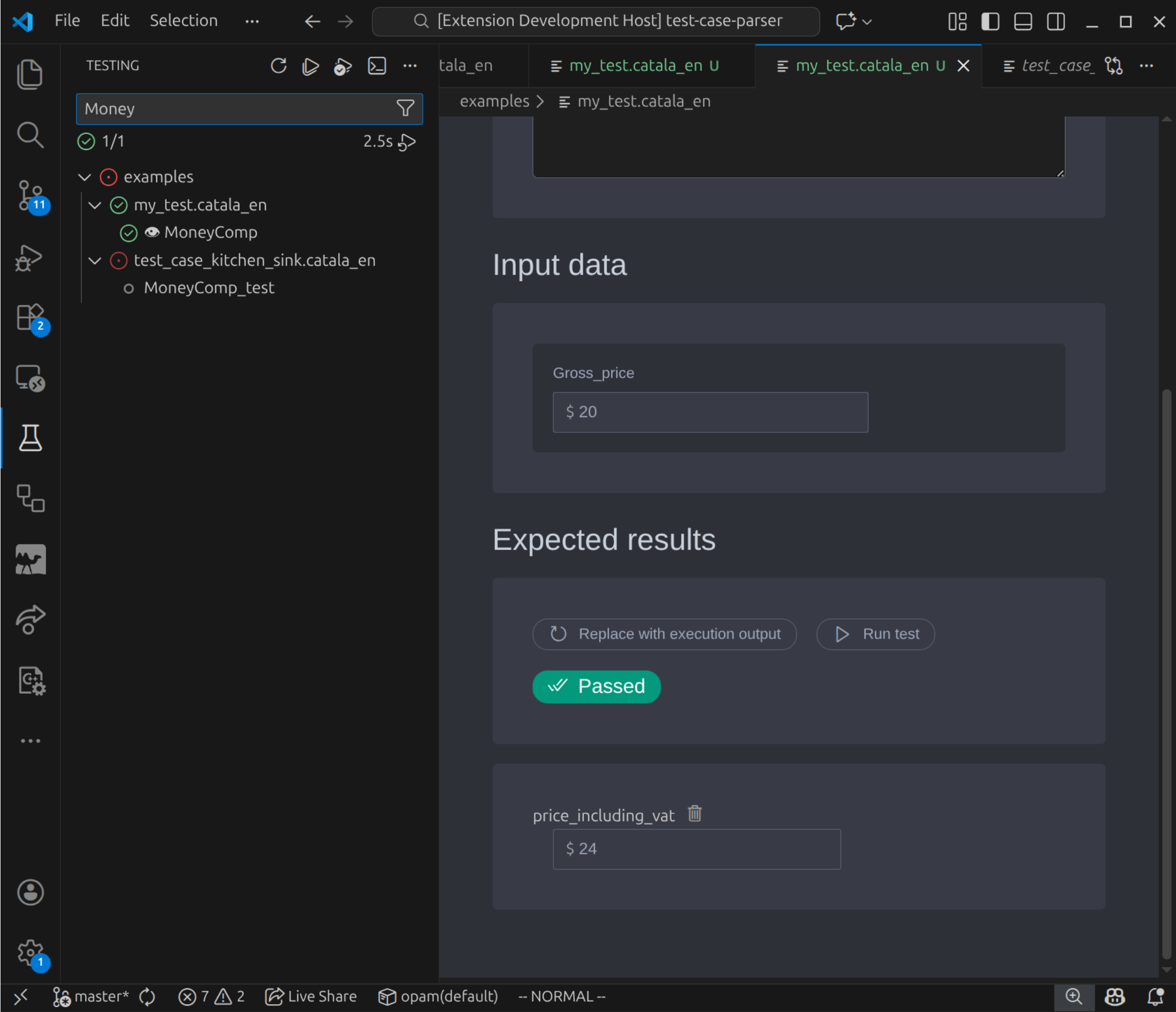
Tests managed by the test case editor are registered as native tests in the VS code test view (beaker icon in the main menu) and can be searched by name or target scope, like the other tests written by programmers as regular Catala source code files.
Metadata
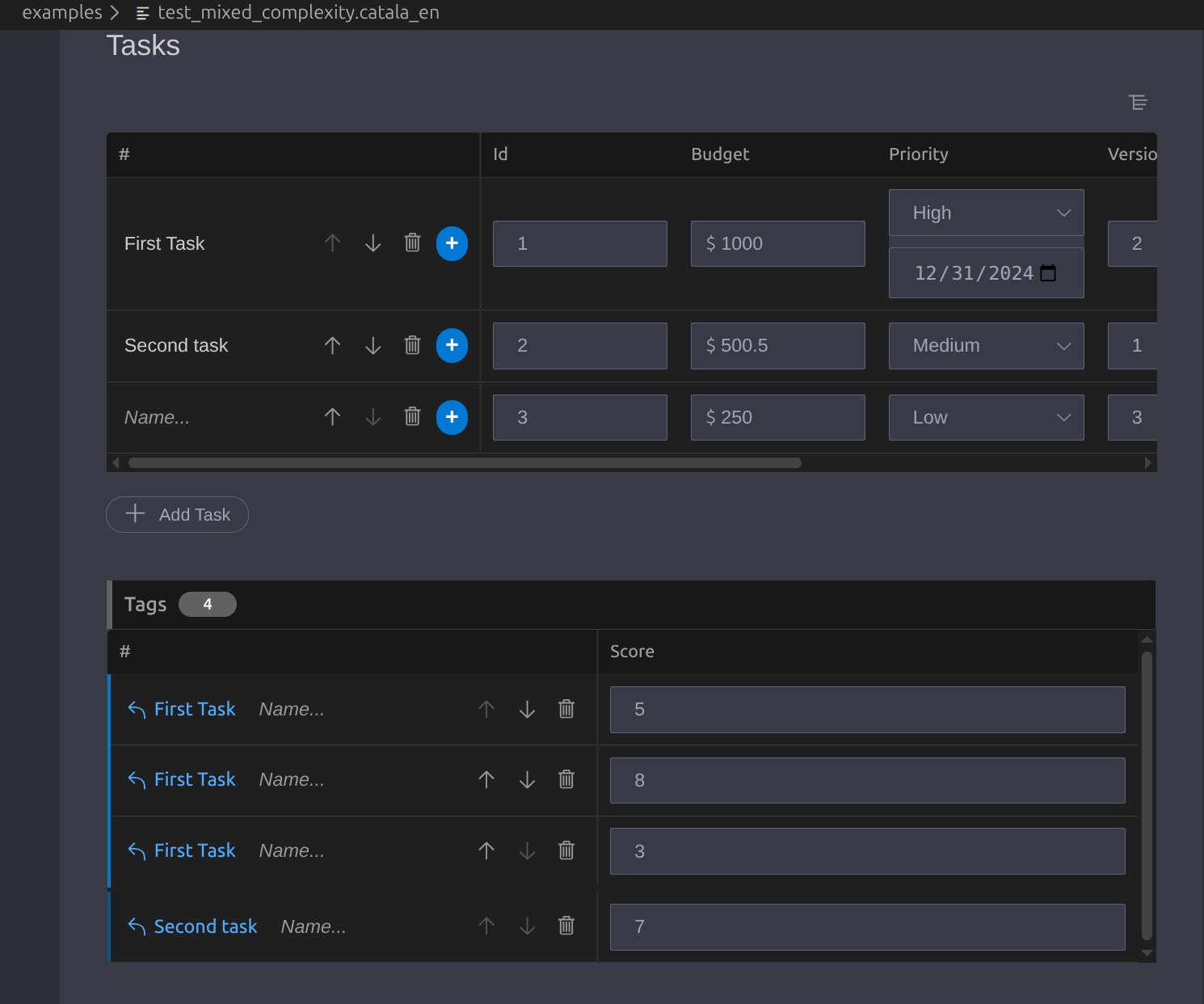
When testing deeply nested data, it is often desirable to name test elements for reference. This can be done in the Array editor.
When named item have sub-items, those will reference their parent’s name for quick navigation.
A test description and title can also be provided.